

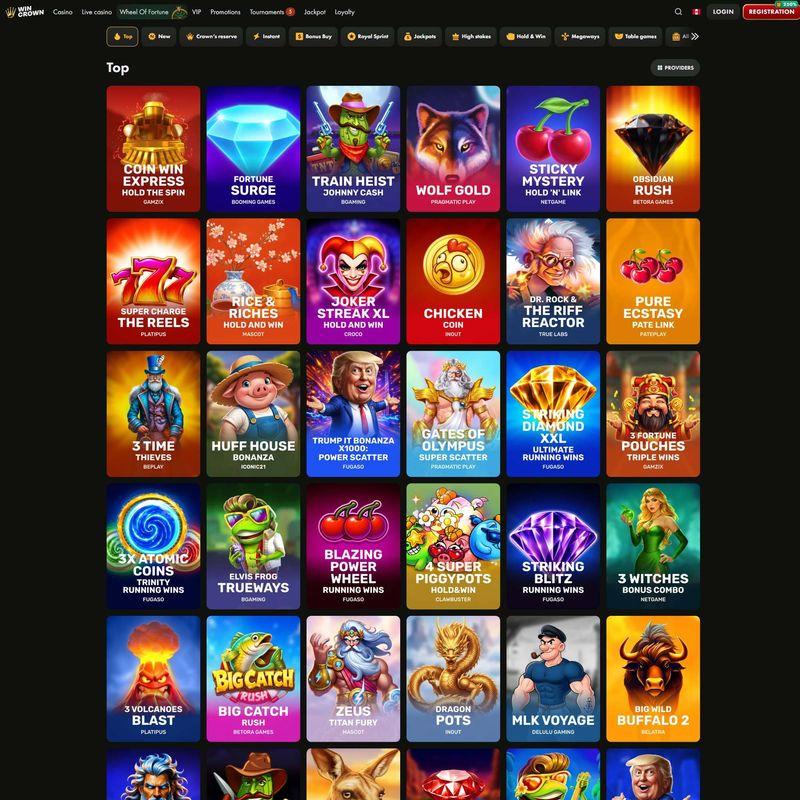
When a casino page loads slowly, rejects a login attempt or displays missing buttons, the cause may be the browser or network rather than the account itself. The available material describes Crowngreen as a browser-based service designed for smartphones and tablets, with no confirmed native mobile app. For New Zealand readers, access should also be checked against the live terms and registration controls before troubleshooting further, because market eligibility is not consistent across published information.
Start by separating access from eligibility
A connection problem and a jurisdiction restriction can look similar. A page may fail to open, show only part of the lobby or prevent sign-in because of a network fault, but it may also limit access based on location or account status. Published material is inconsistent about whether New Zealand users are accepted, while the stated terms place responsibility on users to confirm that online gambling is lawful where they live.
Before changing browser settings, check whether the website displays a clear jurisdiction message, restricted-country notice or registration warning. Do not assume that a successful page load proves eligibility, and do not treat a failed page load as evidence that an account has been closed. The live site terms and any message shown during registration are more relevant than an older review or search result.
It is also worth checking whether the issue affects one page or the entire service. If other websites work normally but the casino site does not, browser compatibility, cookies, content blocking or a temporary service fault become more likely. If several sites are unavailable, investigate the home network, mobile coverage or internet provider first. Avoid creating another account to bypass an access problem, as the published terms prohibit multiple accounts.

Test the browser before changing your device
The described mobile experience is a responsive website, meaning the layout should adapt to a phone or tablet screen rather than requiring a separate download. A responsive design can still behave differently across browsers. An outdated browser, disabled JavaScript, blocked cookies or aggressive privacy settings may prevent menus, verification prompts, chat windows or game frames from appearing correctly.
Use a current version of a mainstream browser and restart it before testing again. If the page is blank or elements overlap, open a private browsing window. This temporarily avoids many stored cookies and extensions, making it useful for identifying whether an old session or add-on is interfering. If the site works privately, clear its stored cookies and cached files in the ordinary browser, then sign in again only through the normal website address.
Extensions can also interrupt legitimate page functions. Temporarily pause ad blockers, script controls, translation tools and strict tracking protection for the site, but restore them afterwards if they are important to your privacy. Do not install an unverified browser extension or download an unofficial application simply because a page recommends it. The available information supports browser access and mentions a possible progressive web app, not a confirmed native iOS or Android app.
When a page will not load, work through the connection
Begin with simple checks: refresh the page, close unused tabs and restart the browser. If the connection is unstable, switch between Wi-Fi and mobile data to see whether the behaviour changes. A different network can help identify whether the problem comes from a router, DNS service, workplace filter or mobile provider. Avoid repeatedly submitting forms while the connection is uncertain, because duplicate requests can create confusion about whether an action succeeded.

Public or workplace networks may block gambling-related domains or certain interactive services. Hotel, library and office Wi-Fi can also use content filters that are outside your control. If a site is blocked by a network administrator, do not attempt to defeat that restriction. At home, restarting the router may resolve a temporary fault, but changing DNS settings should be done only if you understand the privacy and security implications.
For wider online-safety advice, the New Zealand Cyber Security Centre provides general guidance on protecting accounts and devices. That guidance does not confirm anything about this particular operator, but it is useful when checking whether a connection, browser or device is safe. Never enter a password on a lookalike page reached through an unexpected message, and avoid troubleshooting while connected to an untrusted public network.
Check what the error actually means
A timeout usually indicates that the browser did not receive a response quickly enough. A “server unavailable” message may point to a temporary outage, maintenance or a network route problem. By contrast, an invalid-password message concerns account credentials, while a verification prompt may mean that additional identity or account checks are required. Treating every message as a browser fault can lead to unnecessary resets or repeated login attempts.
Take note of the exact wording, time and device used. A screenshot can help support identify whether the problem is technical, account-related or connected with jurisdiction. Do not share passwords, one-time codes or complete identity documents in an ordinary chat message unless the official support process specifically requires a secure upload method. The published material says that identity checks may be requested, but it does not establish universal document requirements or processing times.
If password recovery is needed, the described process uses an email address and a six-digit reset code. Check the spam or junk folder, confirm that the email address is correct and avoid requesting many codes in quick succession, since older codes may stop working. If recovery fails, contact the stated support channel rather than opening a second account. Keep in mind that support availability and response channels can vary by market and current site configuration.
Choose a sensible next step for mobile use
For a phone or tablet, use the browser’s normal address bar and keep the operating system updated. Rotate the device if a wide game interface is difficult to use, and close other applications if the device is short of memory. A responsive site may display the lobby properly while an individual game frame remains difficult to use on a small screen, so screen layout alone does not confirm that every title is compatible.
If the browser offers an “add to home screen” or installable web-app option, understand what it does before accepting. A progressive web app is generally a browser-based shortcut or installed web experience, not proof of a native application distributed through an official app store. Do not install files from unofficial download pages, and be cautious if a supposed mobile app requests permissions unrelated to browsing or account security.
When the problem continues across two updated browsers and separate networks, it is more likely to require operator support or to reflect a service-side restriction. Record the device model, operating system, browser version, network type and error message. Ask whether the issue is a temporary outage, account verification requirement or market restriction. Until the operator confirms otherwise, do not assume that access, promotions, payment options or game availability are guaranteed for a New Zealand account.
Can browser settings affect account access?
Why does the page work in private browsing but not normally?
This commonly indicates stale cookies, cached files or a browser extension interfering with the page. Close the private window, clear stored data for the site and test again with unnecessary extensions disabled. If the issue returns, use another current browser and keep a record of the error before contacting support.
Is a progressive web app the same as a mobile app?
No. A progressive web app is a browser-based experience that may be saved to a device’s home screen. It is different from a native application downloaded through an official app store. The available information does not independently confirm a native app, so avoid unofficial downloads presented as replacements.
What should I do if access fails only from New Zealand?
Check the live terms, registration controls and any location message rather than relying on older promotional material. Published information is inconsistent about New Zealand eligibility. If the service identifies a restriction, do not attempt to bypass it with another account or network. Ask official support for clarification before proceeding.
